How to Create a New Web Project
Web projects are made in Web Studio ⎋, Codecraft Works’ online editor for HTML, CSS, and JavaScript.
Instructions
-
Go to studio.codecraftworks.com ⎋ and make sure you are signed in. If you see a Sign in button in the upper right corner, select it and sign in first. See How to Sign In to Web Studio.
-
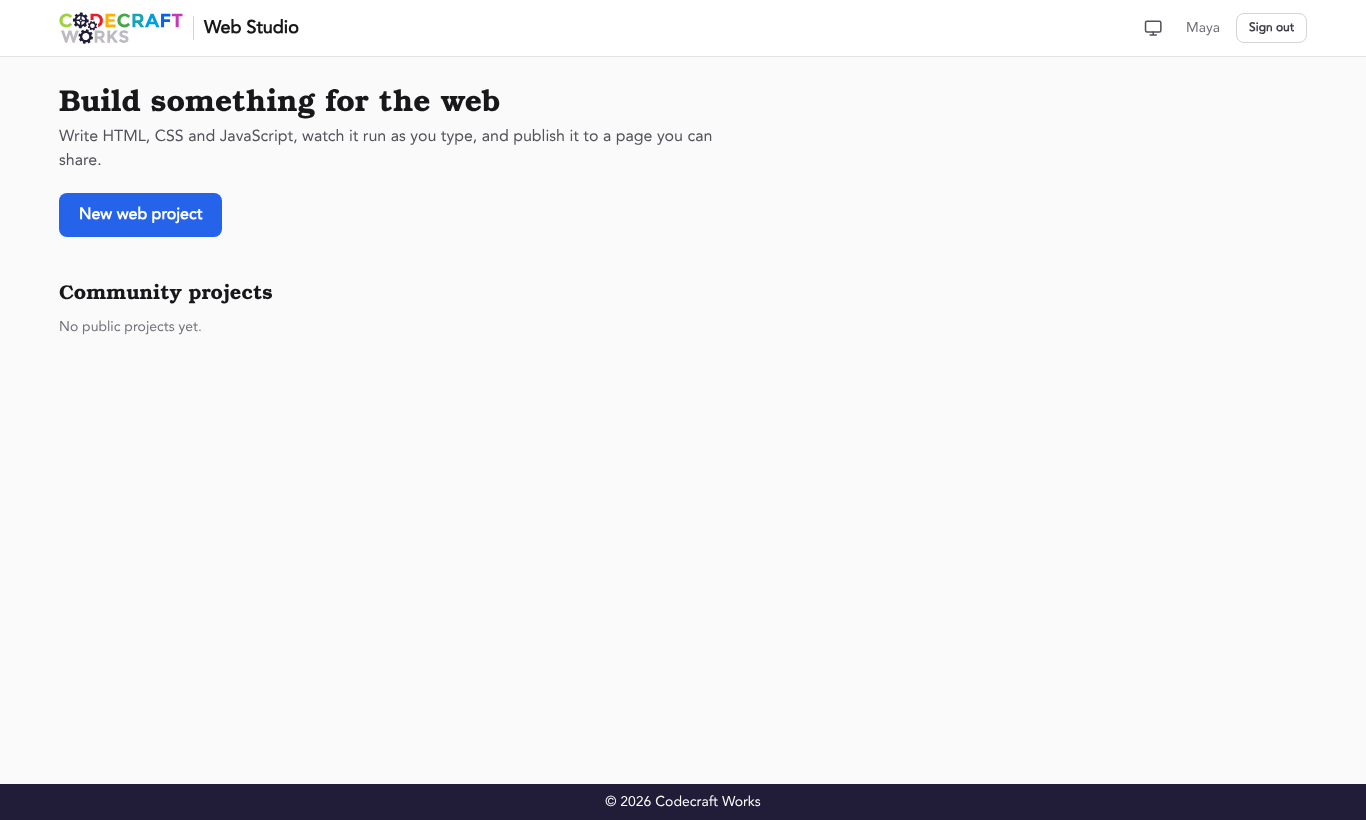
On the Web Studio home page, select the New web project button.
-
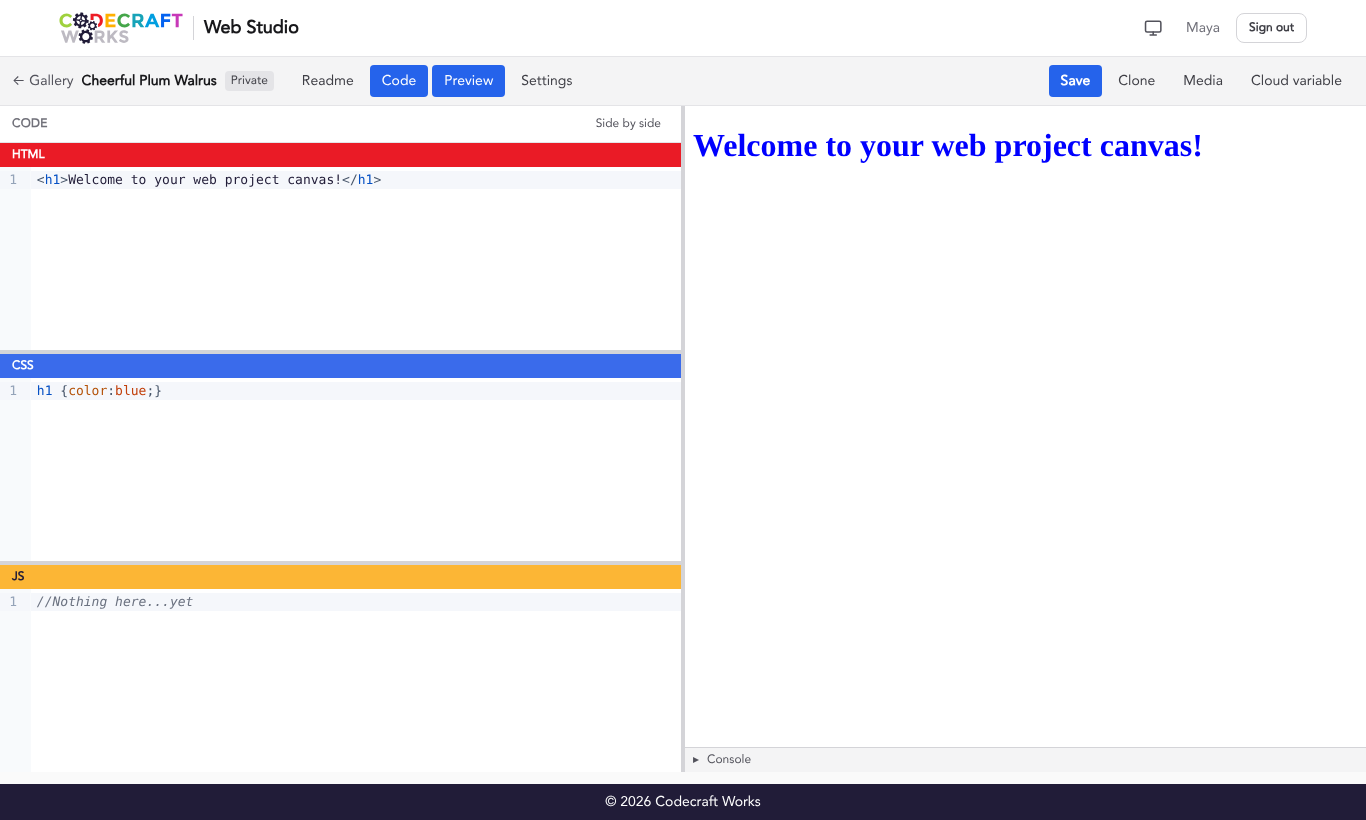
Your new project opens in the editor. It starts with a little bit of sample code, and Web Studio gives it a random name, like “Cheerful Plum Walrus.” You can rename it at any time.
-
Write your code in the HTML, CSS, and JS panes on the left. The preview on the right updates as you type.
-
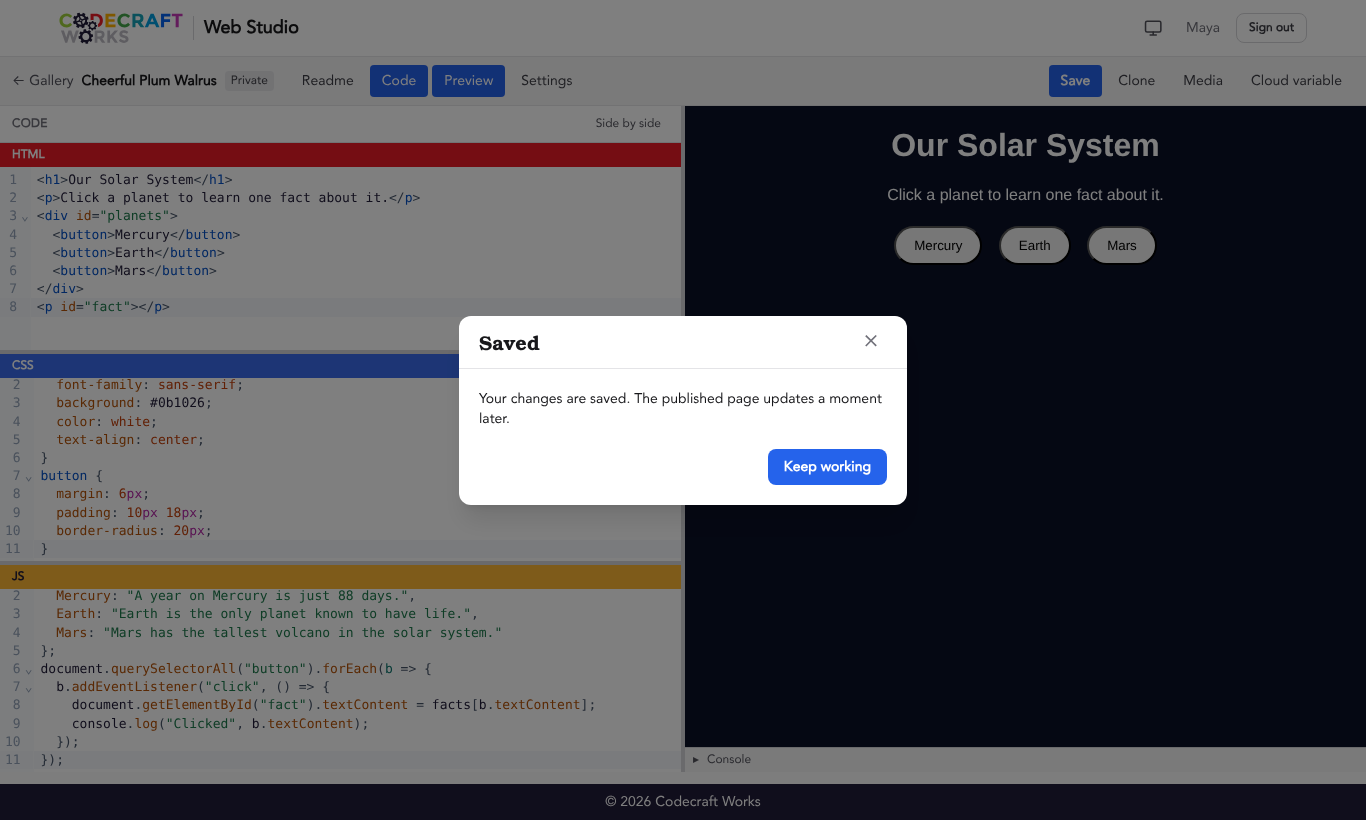
To save your work, select the Save button in the toolbar, or press Ctrl+S (Windows/Chromebook) or Command+S (Mac). Web Studio does not save automatically, so remember to save often! A “Saved” message lets you know your changes are saved.
Rename Your Project
- Select the Settings toggle in the toolbar.
- Type a new name in the Project name field.
- Select Save settings.
Private and Public Projects
New projects are private: only you and your Codecraft Works instructors can open them, and they don’t appear in the gallery. When you are ready to show your project to others, open Settings, set Visibility to Public, and select Save settings. Public projects appear in the Web Studio gallery and on your profile, and can be shared with a link. See How to Create and Use Share Links.
Find Your Projects Later
Every project you make is listed under Your projects on the Web Studio home page ⎋ when you are signed in, with the most recently changed projects first.
Related articles
- Web Studio Quick Start
- How to Clone a Web Project
- How to Add Media to Web Projects
- How to Create a Readme in Your Project
- How to Create and Use Share Links
- How to Create a New Game Project