How to Clone a Web Project
Cloning makes your own copy of a web project. You can clone your own projects, for example to try a big change without risking the original, or any public project in Web Studio ⎋ that you’d like to remix.
Instructions
-
Sign in to Web Studio ⎋. See How to Sign In to Web Studio.
-
Open the project you want to clone. You can find public projects under Community projects and Featured projects on the Web Studio home page.
-
Select the Clone button in the toolbar.
-
A pop-up will appear. Select Clone project.
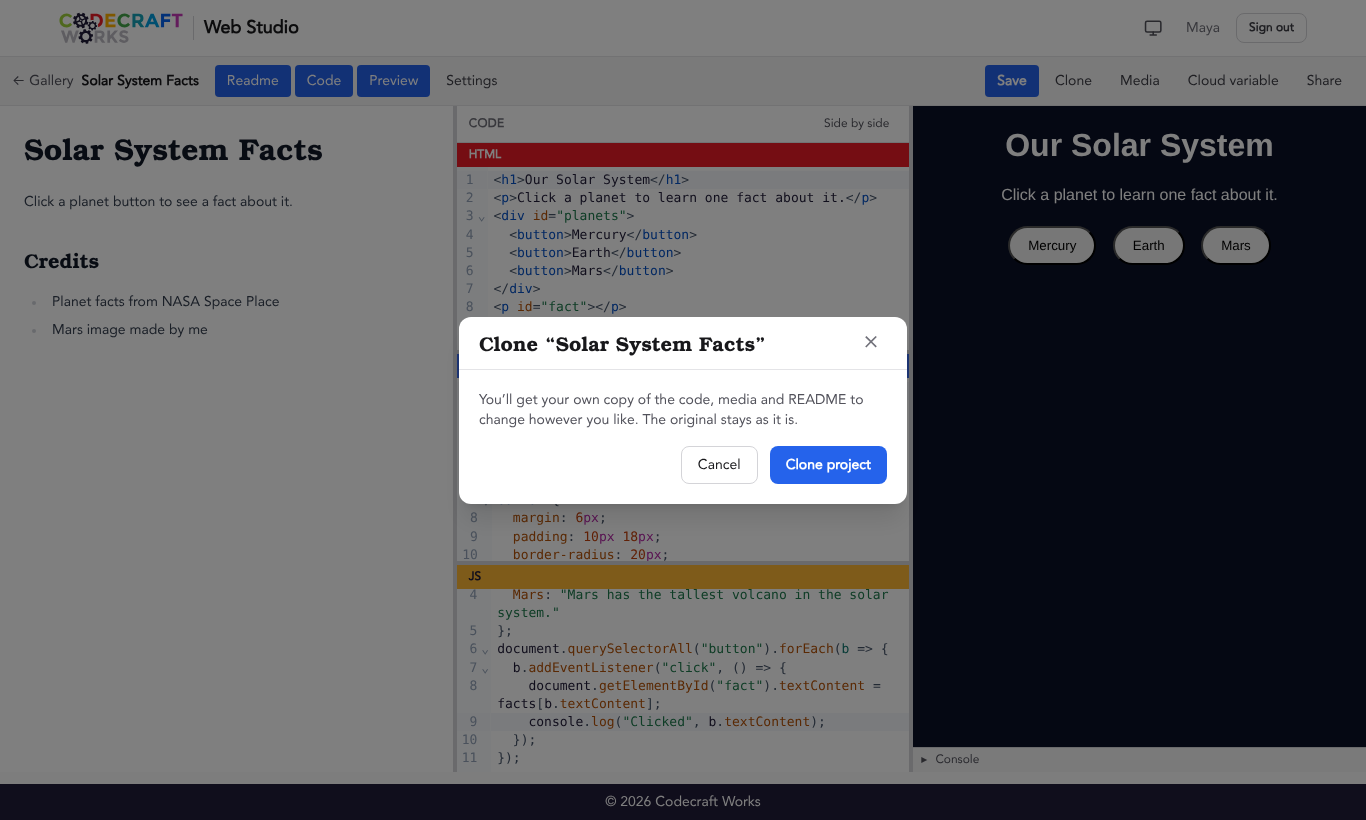
-
Your copy opens in the editor. It is now your project, so you can change and save it however you like.
What Gets Copied
- The project’s HTML, CSS, and JavaScript code.
- Any media uploaded to the project.
- The project’s README.
Your copy gets a new random name, which you can change in Settings. It starts out with the same visibility (public or private) as the original. Changes you make to your copy never change the original project, and changes to the original after you clone it will not appear in your copy.
If you have cloned a project before, the Clone pop-up lists your earlier copies so you can open one of them instead of making another.
Which Projects Can Be Cloned?
- Public projects can be cloned by anyone who is signed in.
- Your own projects can always be cloned, whether they are public or private.